


What was new in DataCAD 13?
DataCAD 13 New Feature Highlights
DataCAD 13 emphasized persistent, set-it-and-forget-it behavior throughout the program. It added Sun Shader visualization, SketchUp 8 import, Object Viewer improvements, a persistent Layer Manager, Smart Arrows and Smart Symbols, and scale-independent text for more predictable drawing production.
XREFs, GoTo Views, polylines, Multi-View Windows, and Multi-Scale Plotting received substantial enhancements. Improved Bézier and B-Spline tools, along with numerous smaller drafting and interface refinements, provided greater control over both 2D documentation and 3D presentation.
 Where to find the new feature
 Helpful hints
Set It and Forget It
DataCAD 13 introduces new scale-independent and view-dependent settings
for text, arrows, and symbols so these items can update automatically
whenever you need to change the scale of your drawing.
Contract documents come in many shapes and sizes. As a designer you
need to present floor plans, elevations, and details for various purposes.
The format, scale, and level of detail in your drawings needs to vary
accordingly. Each time you change the scale of your drawing, elements
such as text and arrows need to be resized so they are legible on paper.
In other words, they always need to plot 1/8" high, regardless
of plot scale. DataCAD 13 can do this for you automatically.
With DataCAD 13 you can also control the level of detail that appears
in symbols when they are viewed or printed at various scales. You can
even control which layers display in 2D and/or in 3D views. This allows
you to place a single detail in your drawing that will display and print
hatching at 3" scale, but not at 1/4" scale. A symbol of a
chair can appear as a simple rectangle in plan and completely 3D in
a perspective or rendered view. We've included more than 1,100 2D/3D
symbols with DataCAD 13 and you can use your existing libraries to create
your own.
We've eliminated the need for manual updates in other areas of DataCAD
13 as well. You can now link multi-scale plotting details to GoTo Views
so the detail will update automatically whenever you update the corresponding
GoTo View. XREF layers can be turned on or off based on GoTo Views.
So you can use a single XREF in multiple views. You can lock the angle
of text in symbols so it will still be readable after you rotate the
symbol.
I’m confident new DataCAD 13 will provide a boost to your production
drawing efficiency.
In addition, here are some of the DataCAD 13 new feature highlights…
Sun Shader
An all-new, OpenGL®-based Sun Shader provides you with sun angles
and shadows based on location, date, and time. A three-dimensional representation
of the sun path from sunrise to sunset can also be displayed around
your model for illustrative purposes. An animation toolbar allows you
to see shadows cast from sunrise to sunset using a play/pause interface.
You can also apply a color tint to shadows to differentiate before and
after conditions. The current view can be saved to an image file in
resolutions up to 4096 pixels or higher depending on your display adapter.

Sun Path and Trajectory

Shadow Study Results Dialog
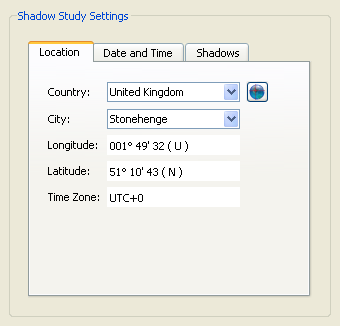
Shadow Study Settings Dialog

Model Displayed in Sun Shader Window

Shadow Animation

Shadow Tint Illustrating June, September, and December Shadows
Choose Sun Shader from the View pull-down menu.
SketchUp 8 File Import
DataCAD 13 provides direct support for SketchUp 8 files.
Select SketchUp from the Insert pull-down menu and choose the SketchUp
file you want to add to your drawing.
Object Viewer Enhancements
A number of new toolbars and a set of pull-down menus have been added
to the Object Viewer interface to improve ease of navigation and provide
quick access to frequently-used options. In addition, the Object Viewer
now supports saved views, similar to GoTo Views in DataCAD.


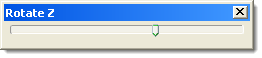


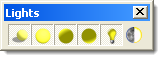


New Object Viewer Toolbars

o2c Lights with custom color settings
Use
the Eye / Focal Point toolbar to set your view point precisely where
you want it.
Persistent Layer Manager
The Layer Manager can now remain open while you are working in DataCAD.When you turn layers on and off, the result is shown immediately in the drawing.
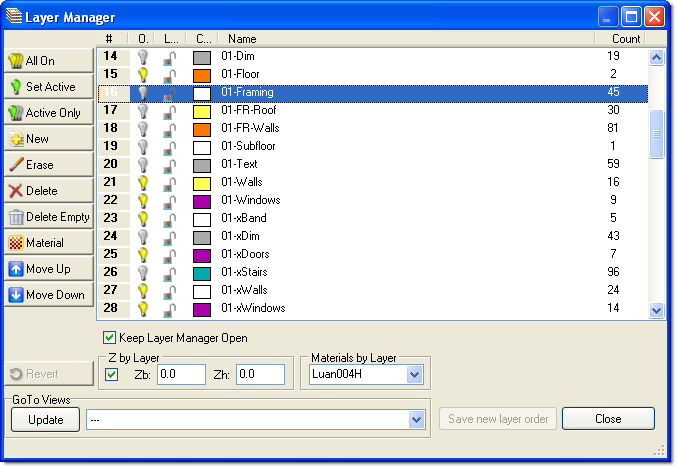
Check "Keep Layer Manger Open" in the Layer Manager Dialog.
Smart Arrows
In addition to the standard, built-in arrow styles, you can now define
your own symbol-based arrow heads. Smart Arrow leaders are polyline-based
so they can be curved. The printed size of arrow heads can be locked
so they always appear the same size, regardless of plot scale. When
you stretch a smart arrow, the arrow head orientation is updated automatically
based on the new angle of the leader.

Arrow Properties Dialog
Go to Text, Arrows, Style and select Symbol to define a custom arrow
head.
Smart Symbols
You can now assign view and/or scale dependency to layers inside
symbols. A symbol may contain layers which only display in plan, layers
which display only in three-dimensional views, or layers which always
display. In addition to being view dependent, symbol layers may also
be scale dependent. This allows you to assign minimum and maximum scales
at which symbol layers will be shown.
With DataCAD 13, you can use the same detail at multiple scales. At
larger scales, you can display and print more information such as material
thicknesses and hatching. At smaller scales, you can choose to show
a simpler outline without hatching. You can merge your 2D and 3D symbols
so one instance can serve multiple purposes; 2D plan, 3D wireframe,
and rendered views.
DataCAD
13 includes more than 1,100 smart symbols you can add to your drawings.
Access
the Layer Manager while editing a symbol to set view and/or scale dependency
settings.
Scale-independent Text
The size of text entities can be locked so they always appear the
same size, regardless of plot scale. This allows you to plot a particular
drawing in a range of several scales without having to edit the size
of each text entity. Text entities with this property enabled will automatically
change their height accordingly based on the current plot scale.

Scale-independent Text
Enable
Text Scale and Lock Size via the Text menu.
You
can also access this setting via the Text Properties Editor.
XREF Enhancements
XREFs have been enhanced so you can control the on/off state of their
layers based on GoTo Views. When this option is enabled, DataCAD will
save and recall the on/off state of XREF layers when you save or recall
a GoTo View.
A new option, "Hide", has been added to the XREF context menu.
When you enable this option, DataCAD will perform a hidden-line removal
on the selected XREF and store the results as a symbol. The XREF is
automatically replaced with the symbol based on the current view projection.
You can select "Update Hide" to update the hidden line image
based on any changes you have made. You can also choose to "Unhide"
the XREF to restore it to its original representation.
XClips and SClips that are defined in nested XREFs can now be merged
with the parent XREF. When this option is enabled, the top-level XClip
will take precedence over nested XClips and SClips.
Select
Remember Layer Settings for GoTo Views from the Reference File Management
pull-down menu.
GoTo View Enhancements
A new option, Hide GTV, available in the Hide menu allows you to create hidden-line symbols based on GoTo Views.
Select
Hide GTV from the 3D Hide menu.
Polyline Enhancements
Polylines created via the 2D Curves menu may now be rotated off the
ground plane. You can use the 3D Rotate command to rotate them about
the X, Y, or Z axis. You can also create them in any parallel view projection.
A new Push/Pull option has been added to the Polyline, Edit menu so
you can dynamically stretch the top or bottom of a polyline.
Multi-View Window Enhancements
Multi-View Windows now support custom names. Their names are saved
on a per-drawing basis, so they may be unique from one drawing to another.

Named Multi-View Windows
Multi-scale Plotting Enhancements
Details you create based on GoTo Views can now be "linked" to any future changes you make to the GoTo View.
Enable
Linked prior to placing a GoTo View on a Multi-scale Plotting Sheet.
Bézier and B-Spline Enhancements
Bézier and B-Spline curves may now have up to 20 control points instead
of only 8. In addition, you may now apply a Z-Height in order to extrude
them for 3D purposes.

Bézier and B-Spline Enhancements
Miscellaneous Enhancements
- Added "Favorites" and "Recent Folders" to the
Symbol Browser
- Added a "Lock Angle" option to the Insert Symbol menu to
keep text inside a symbol locked to its creation angle
- Added a "Flip Normal" option to the 3D Polygon, Edit menu
- Added a "Normal Up" option in the 3D Polygon, Horizontal
and Rectangle menus
- The File, Save As dialog now includes DataCAD 11 (AEC) and DataCAD
12 (AEC) options in the Files of Type drop-down list
- Added "Paste as Symbol" to the Edit, Paste menu
- Added a "Layer Color" toggle to the Move, To Layer and Copy,
To Layer menus
Revision History
Thank you for printing this page. Please feel free to contact us for further assistance. You can call our sales department at +1 (800) 394-2231, Monday through Friday from 8:00 a.m. to 5:00 p.m. Eastern time or send an e-mail message to info@datacad.com.